
Build your menu from a photo
For: Everyone
Take a picture of your price sheet, chalkboard or printed menu. The portal reads it and lists the items it found. You choose which to keep, then check the names and prices.
- Open Menu and tap Scan menu.
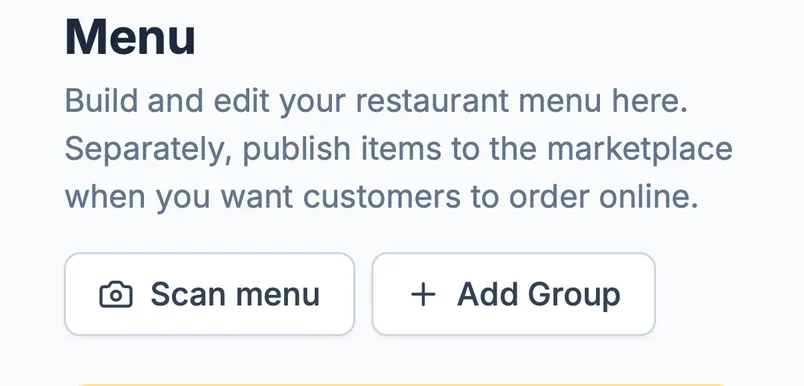
- Take a photo or choose one from your phone. A straight, well-lit photo reads best.
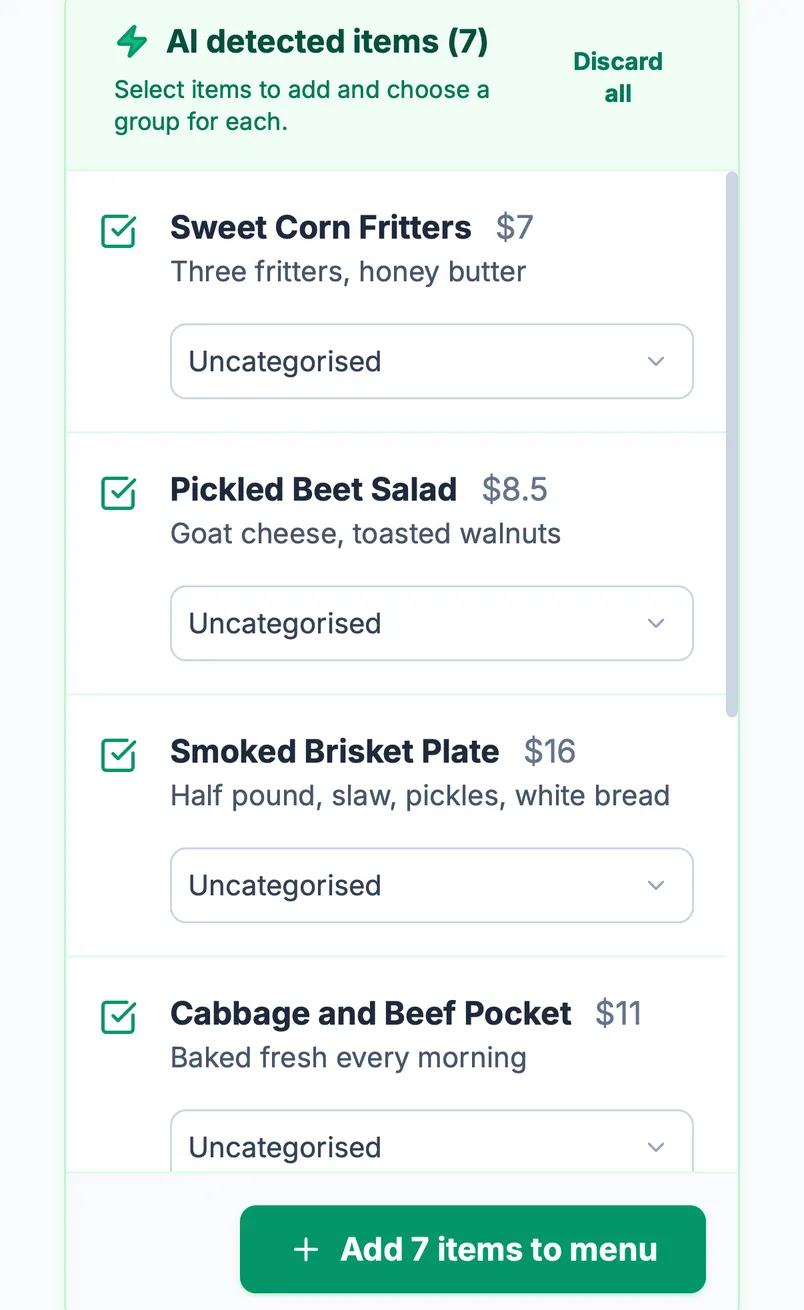
- Wait a moment. A list appears, titled AI detected items, with a count.
- Untick anything you don’t want. For each item you’re keeping, choose a group.
- Tap the green button at the bottom. It reads Add 7 items to menu, with your own count. To throw the whole list away, tap Discard all.
Check what it found
Section titled “Check what it found”The portal is reading a photo, so read the result. Look at every price and every name before you add them. You can edit any item afterward.
What happens next
Section titled “What happens next”The items are on your menu. They are not for sale on the Market until you list them. See Menu and Market: what’s the difference?
Didn't find your answer? Email hello@omahafoodie.com. A person in Omaha writes back.